Installation
On Using FAB or having launcher issues.
At the moment there's a known issue with downloading plugins using the Epic Launcher. If this is happening to you, you can use the 3rd party Asset Launcher that's very good and has resolved this problem for many people.
Installing as Engine Plugin
This is the default method to install plugins to the Engine.
Installation
Find the plugin in your Epic Vault in the Epic Games Launcher and install it to the engine version of your choice.
Enabling the plugin
Go to Edit->Plugins->CinderWeaver. Check the box to enable it if it isn't already and then restart the engine when prompted.
Verifying Chronis settings
Upon restart go back to Edit->Project Settings->. In the Left-hand side of the window, you should find "Chronis Settings." This is for global configuration of things.
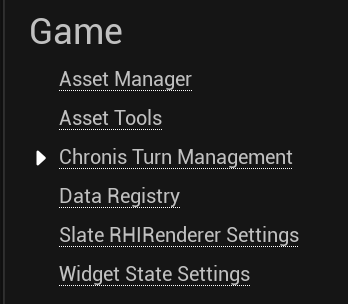
This is what they look like:

Installing as a Project Plugin
This part is similar to installing as an engine pluin but then you have to move the plugin from the Engine to your project's directory.
Installation
Find the plugin in your Epic Vault in the Epic Games Launcher and install it to the engine version of your choice.
Move the plugin to your Project
Go to your Engine Install folder. It would most likely be named something like "UE_5.4". From there, navigate to Engine/Plugins/Marketplace. You should see a folder named "Chronis" and it might be suffixed with the engine version. Cut it from there.
Creating Plugins folder in the Project
If you already have a Plugins folder in your project's root, skip this. If you don't then just create a new folder called "Plugins". Paste the Chronis folder you took earlier and paste it in this new Plugins folder. You're done!
Enabling the plugin
Go to Edit->Plugins->CinderWeaver. Check the box to enable it if it isn't already and then restart the engine when prompted.
Verifying Chronis settings
Upon restart go back to Edit->Project Settings->. In the Left-hand side of the window, you should find "Chronis Settings." This is for global configuration of things.
This is what they look like: