GridCast Editor
The custom editor was built to make authoring patterns as simple as possible. It’s the core and most powerful feature of the plugin.
Button-row
All the really important and useful things about the editor are at the top, part of the default button-row.

Add Chains

This is the button you press when you want to add a new chain to your pattern. Clicking will open the interface to specify a tag, a color and shape.
Refresh Grid

By default, all drawning for slate which is what makes the editor windows, happens on tick and I didn’t like the idea of doing a lot of heavy math on tick so I am cache data and only making updates when necessary.
A side effect of this approach is that when you move the Grid Editor around or change GridSize, you have to manually hit this Refresh Grid button to refresh the grid. It’s a good workflow habit to decide your grid size before you do anything else.
Current Chain Selection
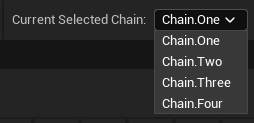
This dropdown uses the GameplayTags that you specify to identify a chain in a list to let you pick which chain should be currently edited.
Edit Current Chain

This allows you to edit the current chain. When you click it, a pop will appear letting you change the shape and color of the currently selected chain.
WARNING
If you change the shape, you’ll lose all the links you’ve drawn for the shape since they can’t be transferred between different shape types!
Randomize Current Chain

It’s a simple randomization feature that was added to speed up prototyping with the plugin, it lets you add a random number of links to a chain by specifying between a min and maximum number of them. The maximum number can’t exceed the maximum number of cells on the grid.For example, a Grid of 7 can at max have 49 links but it’s unlikely for a single chain to have that many elements.
Clear Current Chain

Want to empty the current chain completely? Just click this button and it’ll be reset.
Clear All Chains

Does what Clear Current Chain does but for all the chains at once, very handy if you want to completely start over or if you are copy pasting your patterns after adding the chain and just want to change what the pattern looks like.
Delete Current Chain

Deletes the currently selected chain from the pattern, you will have to add it again.